01 · Routing
Audio devices
Select and hear every intended LIVE, PFL and GO device. Disconnect one deliberately and confirm the warning.
A dependable live setup combines a supported Windows system with tested audio drivers, the intended physical devices and a display that keeps every control readable.
| Operating system | Windows 10 or Windows 11, 64-bit |
|---|---|
| Processor | Minimum: modern dual-core processor. Recommended: modern quad-core processor or better for larger productions and several simultaneous players. |
| Memory | Minimum: 4 GB RAM. Recommended: 8 GB RAM or more. |
| Application storage | Allow approximately 500 MB for the application, plus sufficient local or connected storage for your own audio library and production packages. |
| Display | Minimum: 1366 × 768. Recommended: 1920 × 1080 or higher. Check Windows scaling and the intended readability mode. |
| Audio | A Windows-compatible playback device is required. A dedicated, well-supported audio interface is recommended for broadcast, theatre and other critical work. |
| Controllers | Mouse, touchscreen and keyboard supported. A USB MIDI controller is optional. |
| Network and internet | An internet connection is required for account and entitlement checks before the application opens, plus downloads, updates and online services. Local source audio plays on the main Windows computer. |
| Tablet and Presenter View | Local connected-device workflows require the main computer and approved device to be reachable on the same appropriate network. |
| Platform | JingleDeck is currently built for Windows x64. macOS, Linux, Android and iOS are not supported as the main playback computer. |
For critical live work, test Windows default, every intended physical USB or Bluetooth output, the entire length of representative tracks and unavailable-device behaviour before the production.
A computer that opens the application is not automatically a production-ready system. Use the demo to verify the complete route.
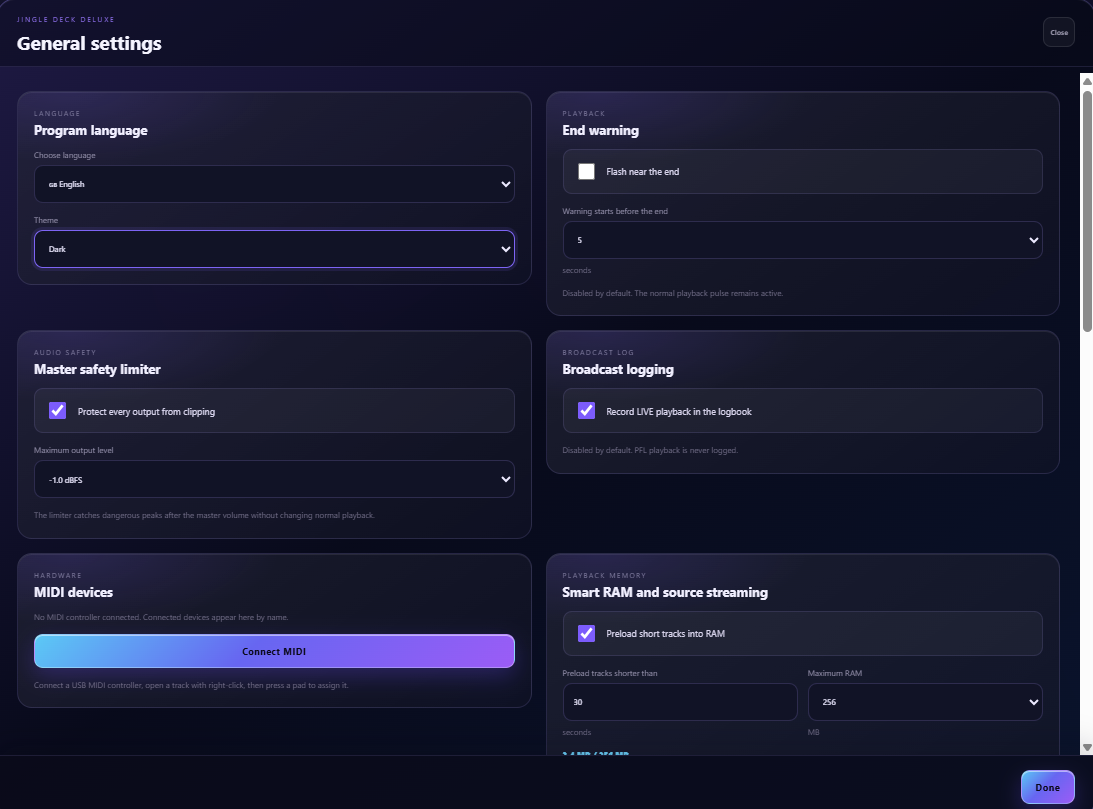
Select and hear every intended LIVE, PFL and GO device. Disconnect one deliberately and confirm the warning.
Play full representative tracks through the physical device and listen for stable speed and pitch from start to finish.
Check the real resolution, Windows scale setting and viewing distance with the number of carts or cues you intend to use.
Test every keyboard or MIDI command, including stop and emergency actions, before relying on it in a show.
Open Presenter View and confirm the correct content appears without technical notes, paths or routing information.
Keep independent copies of important source audio and exported production packages outside the working machine.