ACCOUNT
Create secure access
Use your name, email address and a password. No card details are requested.
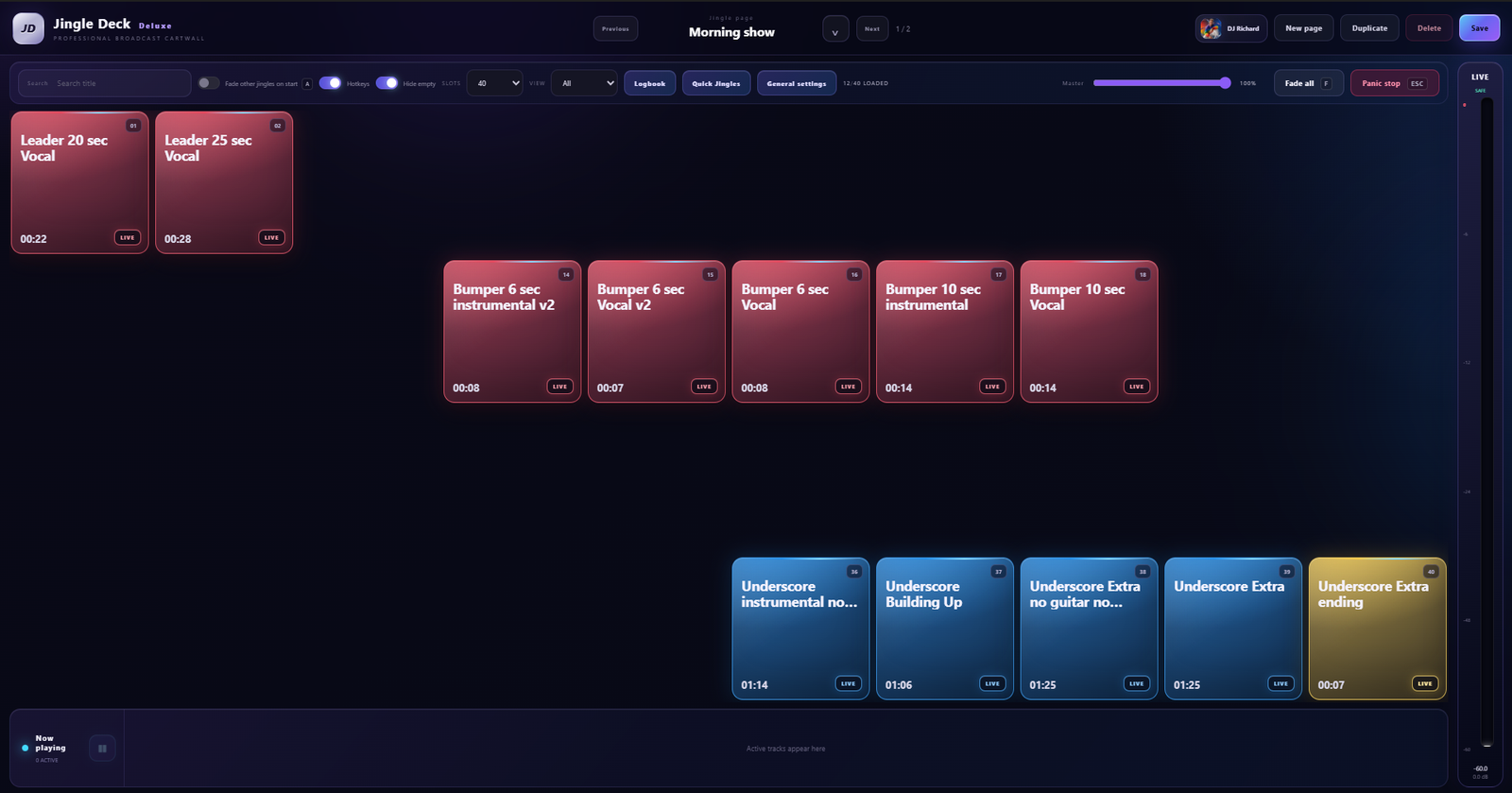
Create a cart page, explore a running order and test the physical audio devices you intend to use. No payment card, beeps or reduced audio quality.
Windows 10/11 · One user · One computer · Seven days
Use your name, email address and a password. No card details are requested.
Sign in to your customer area and request the private Windows download.
Select your user, then open JingleDeck or JingleDeck GO. Both can run together afterwards.
Add your audio, select your intended devices and rehearse the actual workflow before going live.
JingleDeck checks access before opening. When demo access has ended, the application stays closed and points you to activation rather than changing an already-running session.
After purchasing and activating the appropriate licence, the existing local work can remain available. Keep your own backups of important production material as you would with any live system.